
Website Platform Selector for Beginners
Not sure which website builder is right for you? Answer these three questions to find the best platform based on your goals, budget, and technical comfort.
You have an idea. Maybe it’s a portfolio for your photography, a place to share your cooking recipes, or a small online store for handmade candles. But then you hit the wall: which type of website is best for beginners? The internet is flooded with options. Some promise you can build a site in ten minutes. Others claim you need to learn code to be taken seriously. It’s confusing, and honestly, it’s designed to make you feel like you’re missing out if you don’t pick the "pro" route.
The truth is simpler than the marketing hype suggests. For most people starting out, the "best" website isn’t the one with the most complex features. It’s the one that gets you online quickly without breaking the bank or requiring a computer science degree. You don’t need to be a developer to build something professional. You just need to match the tool to your actual goal.
Identify Your Goal Before You Pick a Tool
Before we talk about specific platforms, let’s get real about why you want a website. This single question determines everything else. If you skip this step, you’ll likely end up paying for features you don’t use or struggling with a platform that doesn’t fit your needs.
Ask yourself these three questions:
- Who is this for? Are you trying to get hired (portfolio), sell products (e-commerce), or share thoughts (blog)?
- How often will you update it? Do you plan to post weekly, or will you set it up once and leave it alone for months?
- What is your budget? Are you looking for a free solution, or are you willing to pay $10-$30 a month for better features?
If you’re unsure, start with the simplest option. You can always upgrade later. Trying to build a massive e-commerce empire on day one usually leads to burnout. Start small, launch fast, and improve as you go.
The Three Main Paths for Beginners
When we talk about building a website today, there are really only three viable paths for someone who isn’t a coder. Each has its own strengths, weaknesses, and ideal user profiles. Let’s break them down so you can see which one fits your situation.
All-in-One Website Builders are platforms that host your site and provide the tools to build it, all in one subscription. Think of companies like Wix, Squarespace, or Shopify.
These are the easiest entry points. You sign up, pick a template, drag and drop elements, and hit publish. They handle the security, the updates, and the hosting. You don’t think about servers. You just design. This is perfect for portfolios, small business landing pages, or simple blogs where ease of use is more important than total control.
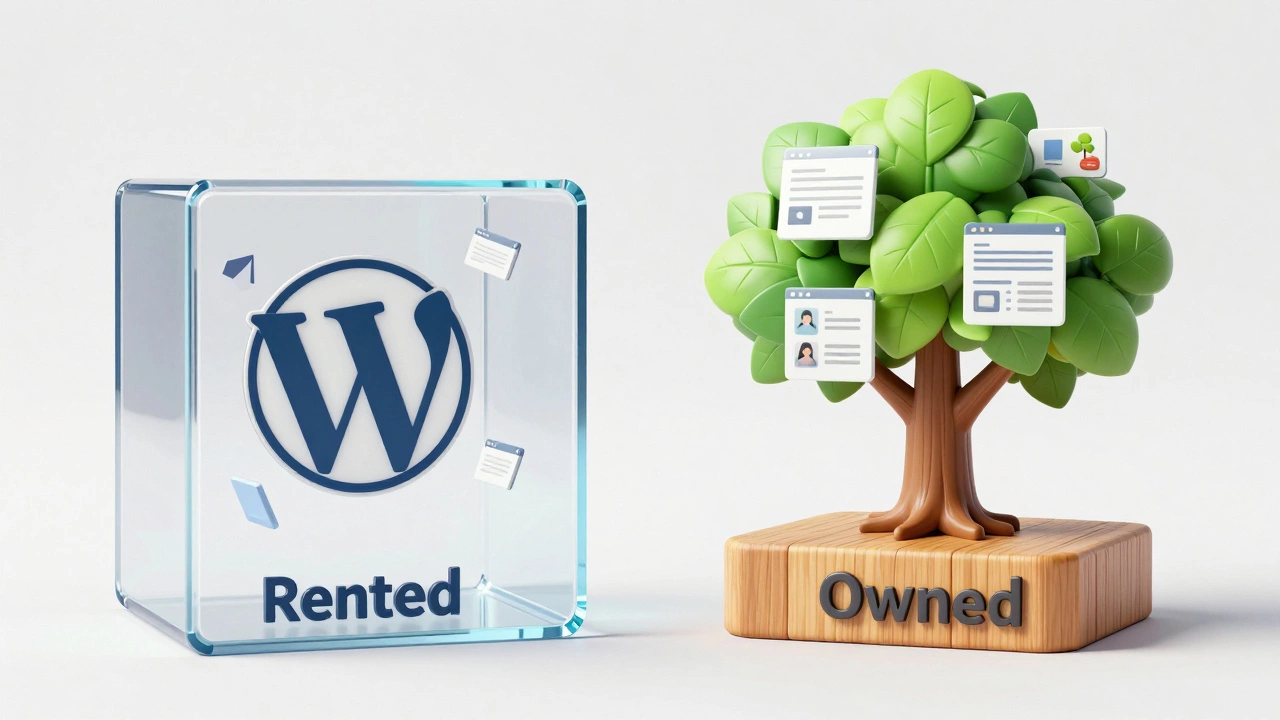
Content Management Systems (CMS) like WordPress.org are software you install on your own web hosting account to manage content. Unlike builders, WordPress is open-source software. You own it completely.
This path requires a bit more work. You need to buy a domain name, pay for hosting (like Bluehost or SiteGround), and install the software. However, once it’s running, it’s incredibly powerful. There are thousands of free plugins and themes. If you want to start a serious blog, a news site, or a business that might grow into something large, WordPress is the industry standard. It powers over 40% of the web for a reason.
E-Commerce Platforms like Shopify are specialized tools built specifically for selling products online. While general builders can add a store, dedicated e-commerce platforms offer inventory management, shipping calculations, and tax handling out of the box.
If your primary goal is to sell physical goods, do not try to force a blog platform to do this job. Use a tool made for selling. Shopify is the leader here because it removes the friction between adding a product and getting paid.
Comparison: Which Platform Fits You?
To help you decide, let’s look at how these top contenders stack up against each other. We aren’t just looking at price; we’re looking at flexibility, learning curve, and long-term value.
| Platform | Best For | Learning Curve | Monthly Cost (Approx.) | Ownership Level |
|---|---|---|---|---|
| Wix | Portfolios, Small Business Sites | Very Low | $17 - $35 | Rented (You don't own the code) |
| Squarespace | Creative Professionals, Restaurants | Low | $16 - $49 | Rented |
| WordPress.org | Blogs, News Sites, Scalable Business | Medium | $5 - $15 (Hosting + Domain) | Full Ownership |
| Shopify | Online Stores, E-commerce | Low | $29 - $299 | Rented |
Notice the cost difference? WordPress is often cheaper in the long run because you’re paying for basic hosting rather than a premium all-in-one service. However, that low monthly fee comes with the responsibility of managing updates and security yourself. With Wix or Squarespace, you pay more, but they handle the technical heavy lifting.
Why WordPress Is Often the "Smartest" Choice
If I had to recommend one path for someone who wants to take their online presence seriously, it would be WordPress.org. Why? Because it scales with you.
Start with a simple blog using a free theme like Astra or GeneratePress. As you grow, you can add membership areas, sell digital downloads, or expand into a full e-commerce store using WooCommerce. You never have to migrate to a new platform. You just add features.
With an all-in-one builder, you are stuck in their ecosystem. If you hate their editor, you can’t change it. If they raise prices, you have to move everything, which is a nightmare. With WordPress, you own your data. You can export your content anytime. This sense of ownership is crucial for anyone treating their website as a business asset rather than a temporary hobby.
That said, the learning curve is steeper. You’ll spend your first weekend watching tutorials on how to install plugins and configure permalinks. It’s worth it. The skills you learn-basic HTML understanding, SEO fundamentals, image optimization-are transferable to any other platform later.
The Trap of "Free" Website Makers
You’ve probably seen ads for sites that let you build a website for free. Be careful. These platforms, such as Weebly’s free tier or Blogger, come with significant hidden costs.
First, your URL will look unprofessional. Instead of yourname.com, it will be yourname.weebly.com. This hurts your credibility immediately. Clients and customers trust .com domains. Second, these free plans often display the platform’s ads on your site. Imagine having a banner for a random competitor on your portfolio page. It looks amateurish.
Third, and most importantly, you cannot easily move away. If you decide to upgrade later, migrating your content from a proprietary free builder to a professional platform is difficult. It’s like renting a furnished apartment where you’re not allowed to paint the walls or take the furniture when you leave. Paying $5 a month for your own domain and hosting gives you freedom that "free" never will.
Design Principles for Non-Designers
Once you’ve picked your platform, you face the blank canvas. You don’t need to be a graphic designer to make a site look good. In fact, less is usually more. Here are three rules to follow:
- Stick to Two Fonts. One for headings, one for body text. Google Fonts offers hundreds of free, high-quality options. Pair a bold sans-serif like Montserrat with a readable serif like Merriweather. Don’t mix five different fonts. It creates visual chaos.
- Use White Space. Beginners tend to clutter every inch of the screen. Give your content room to breathe. Large margins and padding make your site look expensive and modern. If it feels empty, it’s probably right.
- Optimize Images. Large photos slow down your site. A slow site loses visitors. Use tools like TinyPNG to compress images before uploading them. Aim for file sizes under 200KB for standard images. This simple step improves your search engine ranking and user experience.
Most templates provided by Wix, Squarespace, and WordPress themes are already designed with these principles in mind. Your job isn’t to reinvent the wheel. Your job is to customize the colors and swap in your own photos. Trust the template designers. They’ve spent years figuring out what works.
Common Mistakes to Avoid
I’ve seen hundreds of beginner sites fail not because of bad technology, but because of bad strategy. Here’s what to avoid:
- Perfectionism Paralysis. Don’t wait until the site is "perfect." Launch when it’s functional. You can fix typos and tweak layouts after you go live. The best way to learn is by having a live site.
- Ignoring Mobile Users. More than half of all web traffic comes from phones. Preview your site on your mobile device constantly. If buttons are too small to tap or text is too small to read, your desktop version doesn’t matter.
- Skipping Basic SEO. Search Engine Optimization isn’t magic. It’s just organizing your content so Google understands it. Write clear titles for your pages. Use descriptive URLs (e.g.,
/blue-ceramic-vaseinstead of/product-123). Add alt text to your images describing what they show.
Another mistake is buying a domain name you can’t spell or remember. Keep it short. Avoid hyphens and numbers. If you have to explain how to spell your URL to someone, it’s too complicated.
Next Steps: How to Start Today
So, which type of website is best for beginners? If you want the easiest path with zero technical hassle, choose Wix or Squarespace. If you want long-term growth, ownership, and lower costs, choose WordPress.org. If you are selling products, choose Shopify.
Here is your action plan for the next 48 hours:
- Buy your domain name. Go to Namecheap or Google Domains and secure your
.com. It’s usually around $10-$15 per year. Do this even if you haven’t built the site yet. Good names disappear fast. - Pick your platform. Sign up for a trial or a cheap hosting plan. Don’t commit to a yearly contract yet. Test the interface for a few days.
- Install a template. Choose a pre-made design that matches your industry. Customize the logo and colors. Write a simple "About Me" page.
- Launch. Connect your domain and hit publish. Share the link with five friends. Ask them for honest feedback. Then iterate.
Building a website is no longer a barrier to entry. It’s a skill you can pick up in a weekend. The only thing stopping you is the fear of making the wrong choice. Remember, there is no wrong choice as long as you start. You can always pivot later. Just get started.
Is WordPress hard for beginners?
WordPress has a slightly steeper learning curve than drag-and-drop builders like Wix, but it is not difficult. Most hosts offer one-click installation. Once installed, the dashboard is intuitive. You may spend a few hours watching YouTube tutorials to understand plugins and themes, but the core functionality is easy to grasp. The trade-off is that you gain full ownership and scalability.
Can I start a website for free?
Yes, platforms like WordPress.com, Wix, and Weebly offer free tiers. However, these plans include platform branding (ads), subdomain URLs (e.g., yoursite.wix.com), and limited storage. For a professional appearance and better search engine rankings, investing $5-$10 a month in custom domain and hosting is highly recommended.
What is the cheapest way to build a website?
The cheapest reliable method is using self-hosted WordPress.org. You can find shared hosting plans for as low as $3-$5 per month. Combined with a domain name (~$10/year) and a free theme, your annual cost can be under $70. This is significantly cheaper than all-in-one builders which often charge $15-$30 per month.
Do I need to know coding to build a website?
No. Modern website builders and CMS platforms like WordPress allow you to build fully functional sites without writing a single line of code. Visual editors and pre-made themes handle the technical details. Coding knowledge is only necessary if you want to create custom features that existing plugins cannot provide.
Should I choose Wix or WordPress?
Choose Wix if you prioritize ease of use, have a simple static site (like a restaurant menu or portfolio), and don’t want to manage updates. Choose WordPress if you plan to blog regularly, want full ownership of your content, need advanced SEO capabilities, or anticipate scaling your site into a larger business. WordPress is more flexible; Wix is more convenient.